Google Calendar Sync & Reminder
Never miss an appointment with seamless Google Calendar synchronization and customizable reminders. Sync across all your devices.
Never miss an appointment with seamless Google Calendar synchronization and customizable reminders. Sync across all your devices.
Everything you need to manage your schedule effectively
Seamlessly sync your calendars across multiple platforms. Changes made on one device appear on all others instantly.
Set intelligent reminders that adapt to your schedule. Never miss an important appointment again.
Manage multiple Google Calendars in one place. Keep work, personal, and shared events organized.
Available on all your devices - desktop, mobile, and tablet. Your calendar follows you everywhere.
Your data is encrypted and secure. We respect your privacy and protect your personal information.
Tailor the sync to your specific needs. Choose what to sync, when to sync, and how to be notified.
Follow these detailed steps to install, configure, and use the Monday.com to Google Calendar sync app
1. Go to Monday.com Apps Marketplace.
2. Search for "Google Calendar Sync & Reminder".
3. Click Install and authorize permissions.
The app will request permissions to access your boards, create/update items, and integrate with Google Calendar.
1. Open your Monday.com board.
2. Click + Add to Board or Integrations.
3. Select Google Calendar Sync & Reminder.
4. The app widget appears on your board.
It will ask you to signin with your Google account.
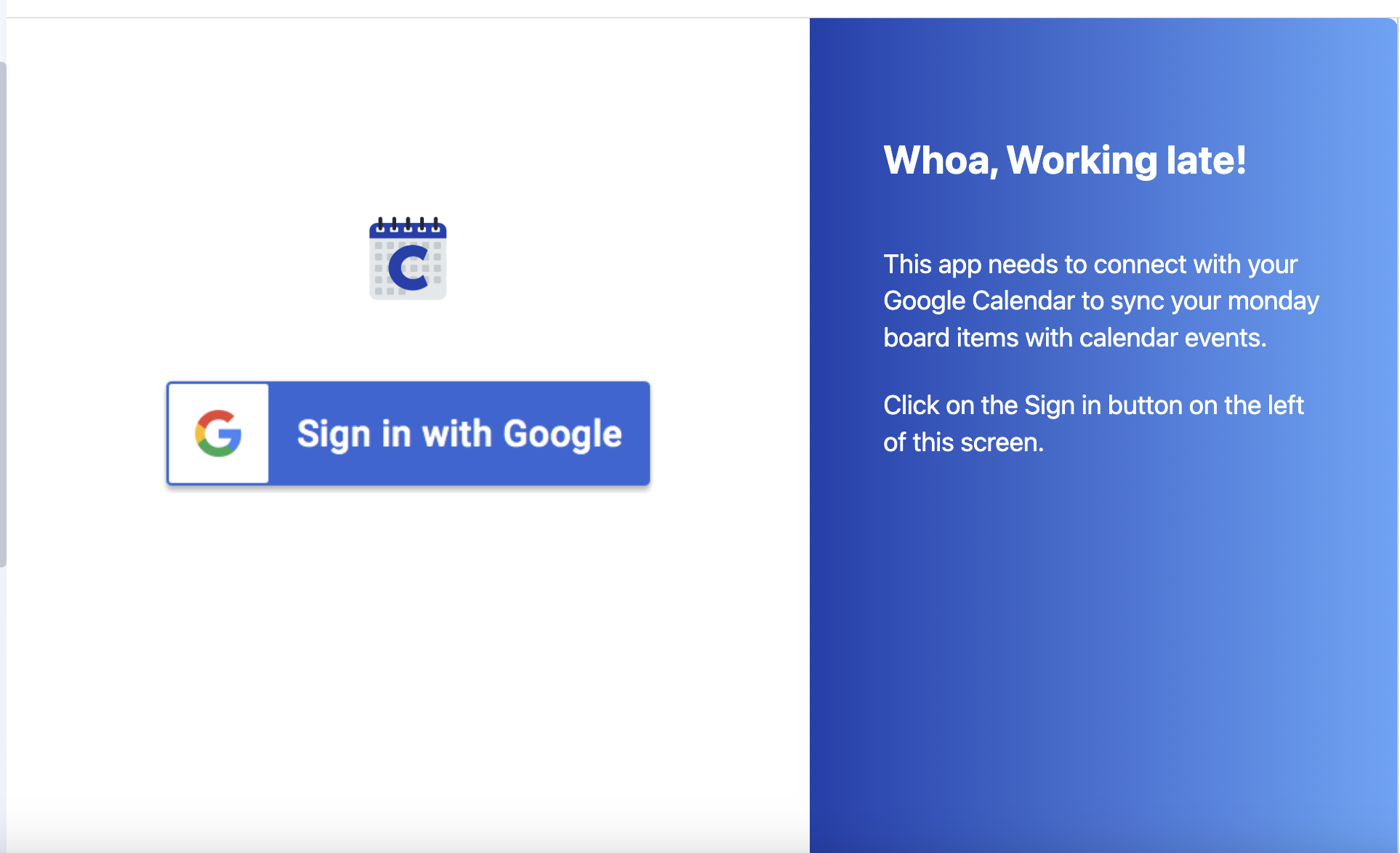
Click Connect Google in the app widget to start the secure OAuth flow.
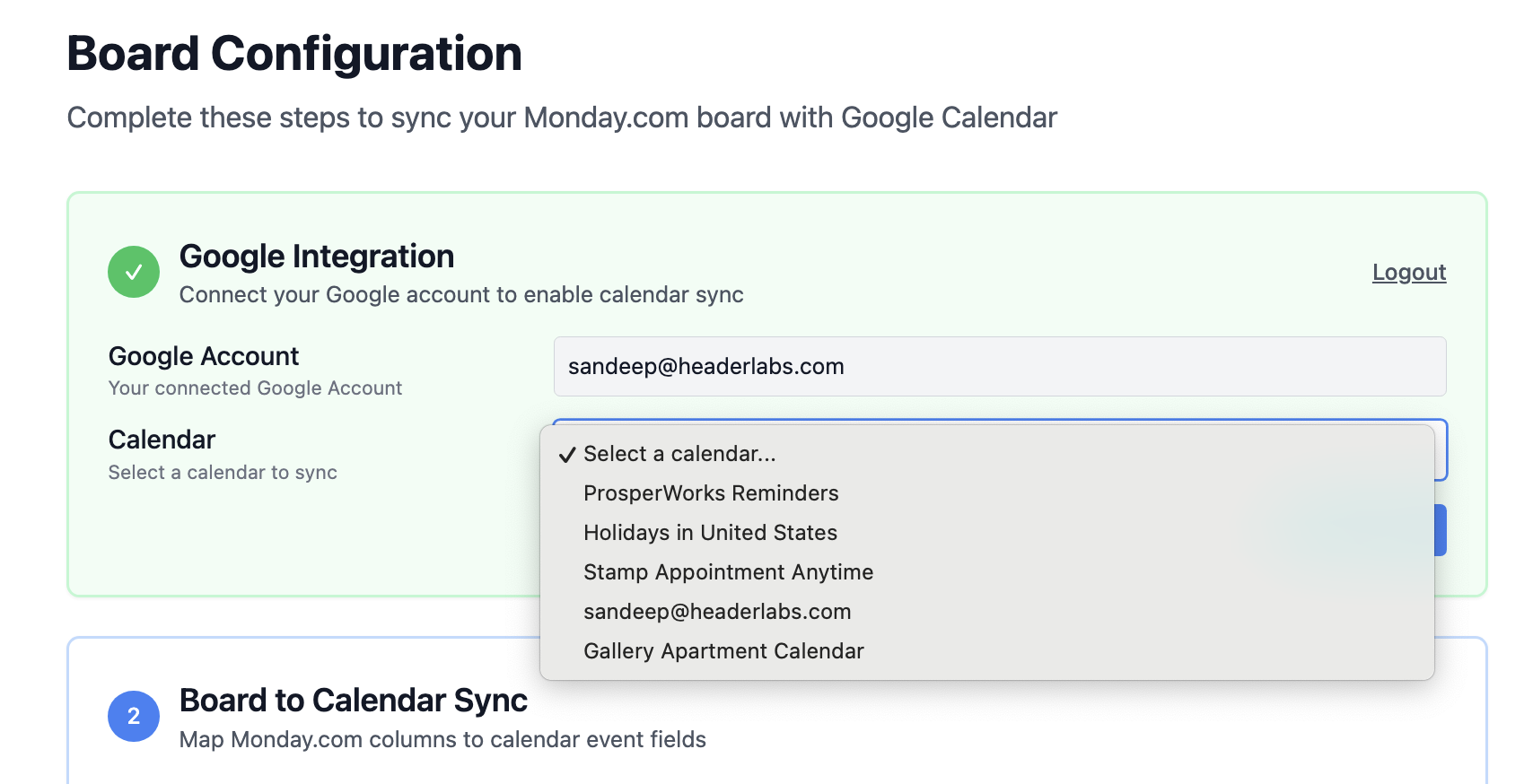
To change calendar:
1. Click the calendar dropdown.
2. Select a different Google Calendar you own or have access to.
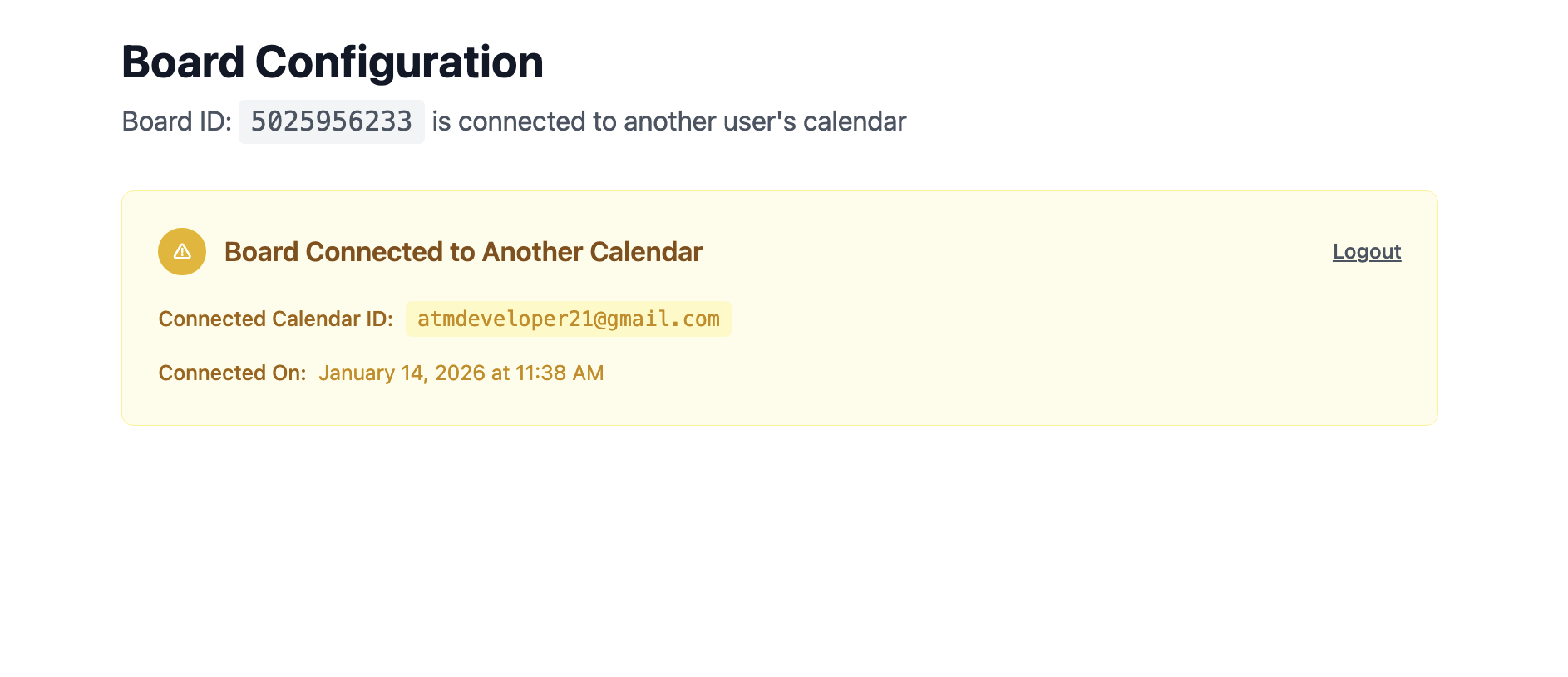
To remove account:
1. Click Logout.
2. Reconnect with a new account.
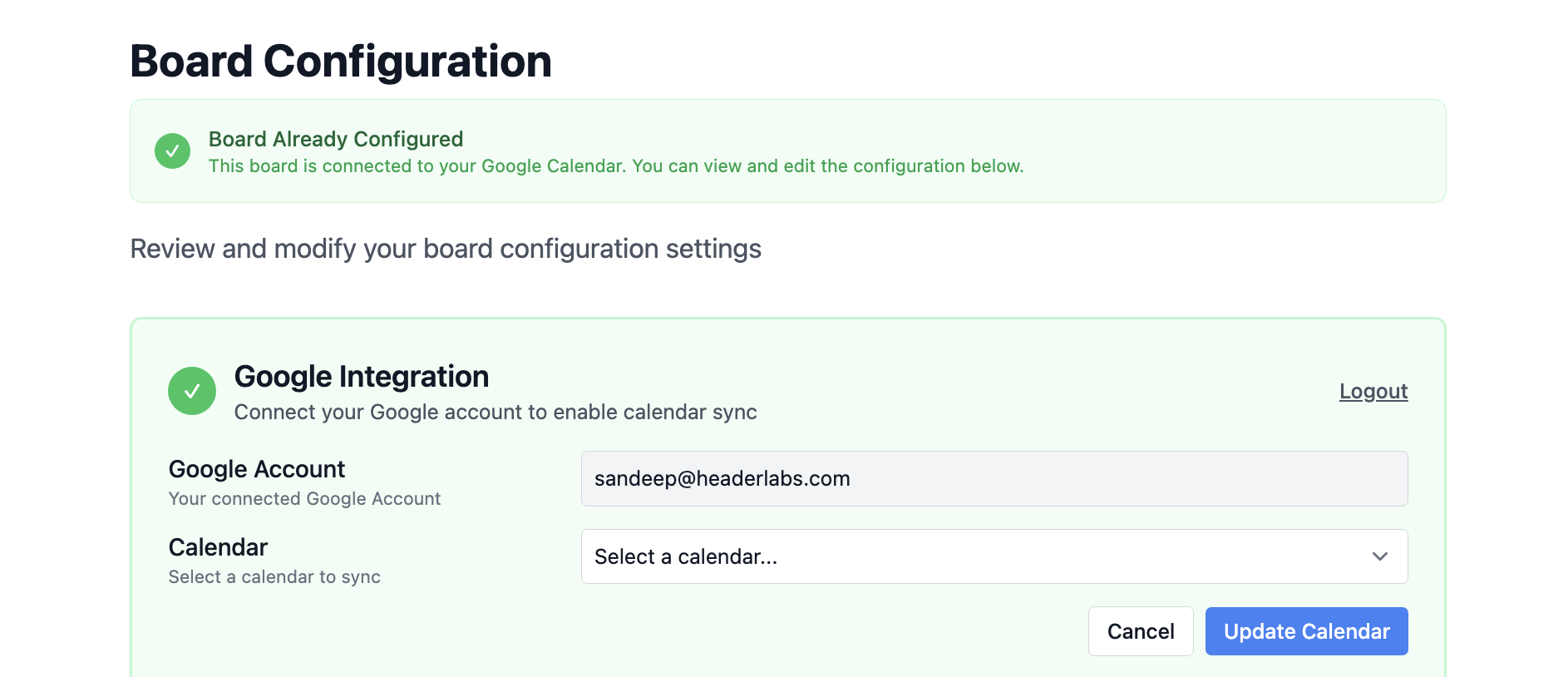
Note: Only one calendar per board. If already linked by another user, you will not be able to connect your calendar to this board.
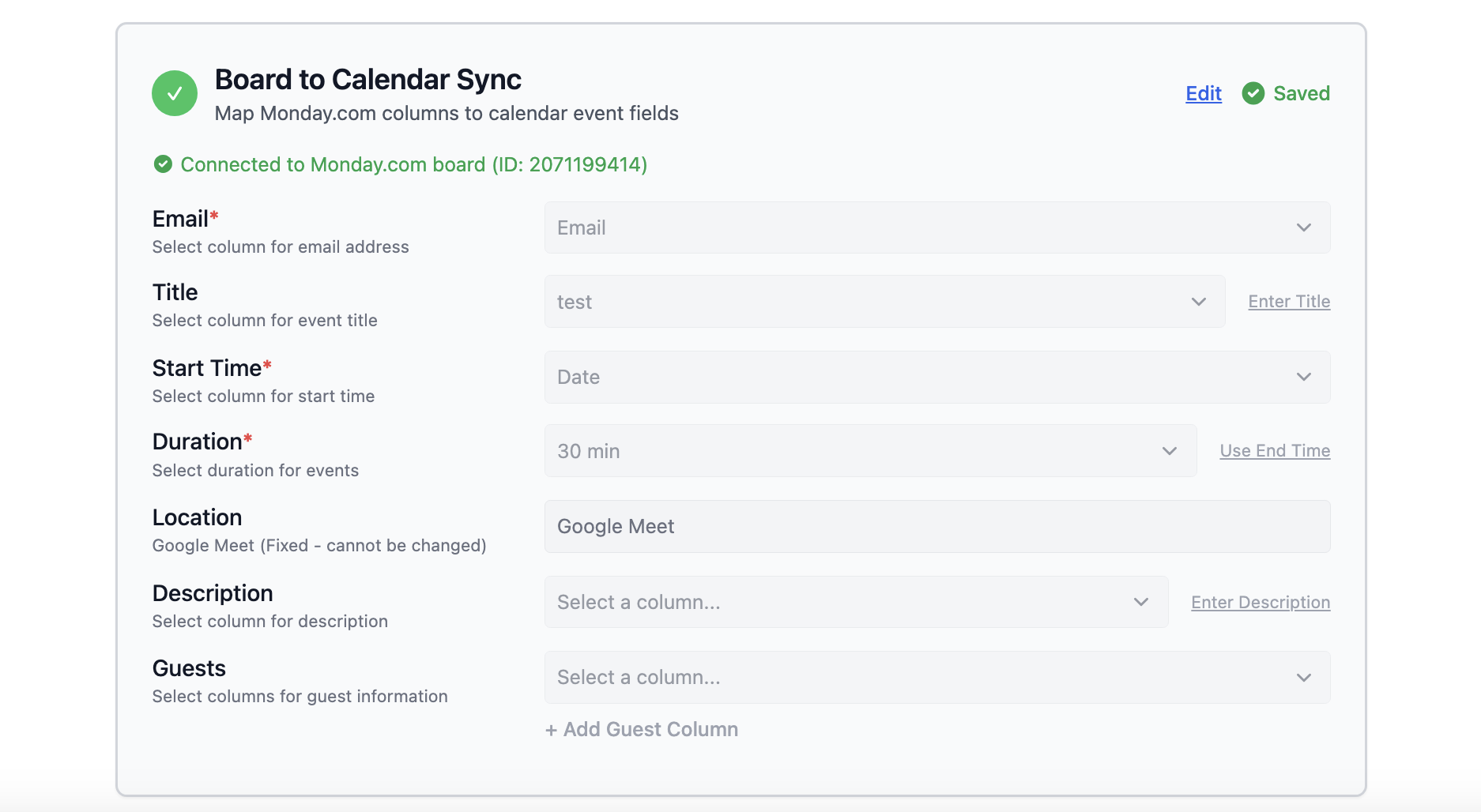
This mapping tells the app how to transform board items into Google Calendar events, including generating Google Meet links automatically.
In the app: Go to Board to Calendar Sync tab.
1. For each item, select the Main table column from where the value will come from (e.g. Email → Email or People or any other column).
2. All red asterisks are required items.
3. For Title, you can select a column or enter a fixed text.
4. For Duration, you can enter the number of minutes or the column where end-time is stored.
5. For description, you can select the column or enter a fixed text.
6. For Guest EmailYou can enter the column from where the additional meeting guest emails can be retrieved.
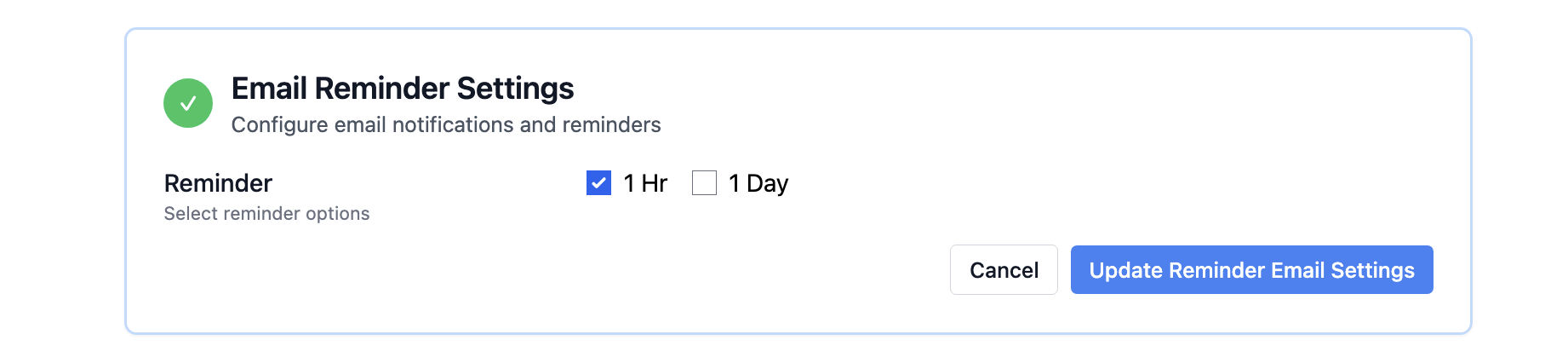
1. Go to Reminder Settings tab.
2. Configure frequency: e.g., 1 hour before or daily.
3. Select delivery methods:
- Email: Sent to everyone in the event (all guests). No additional setup needed.
- Phone (SMS): Only for event owners. Enter phone number with country code (e.g., +1 555-555-5555) and agree to SMS terms (Msg frequency may vary; data rates may apply. Reply STOP to end).
Reminders ensure no one misses important events: Email to all participants, Phone/SMS to owners only. System sends notifications based on configured settings.
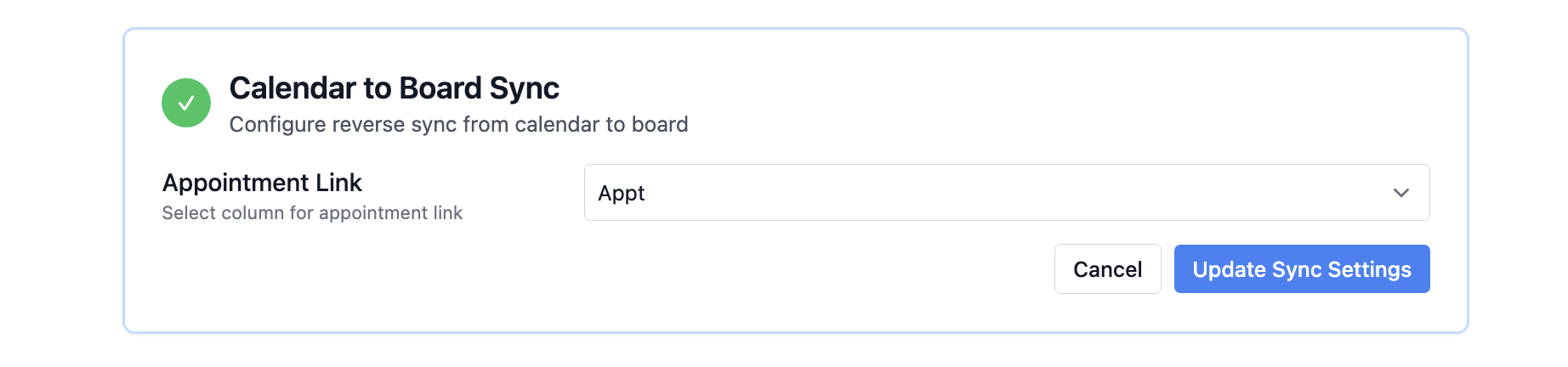
This bi-directional sync updates your board and enters the meeting link for the event.
1. Go to Calendar → Board tab.
2. Select the Main table column where Google Calendar meeting link will be stored.
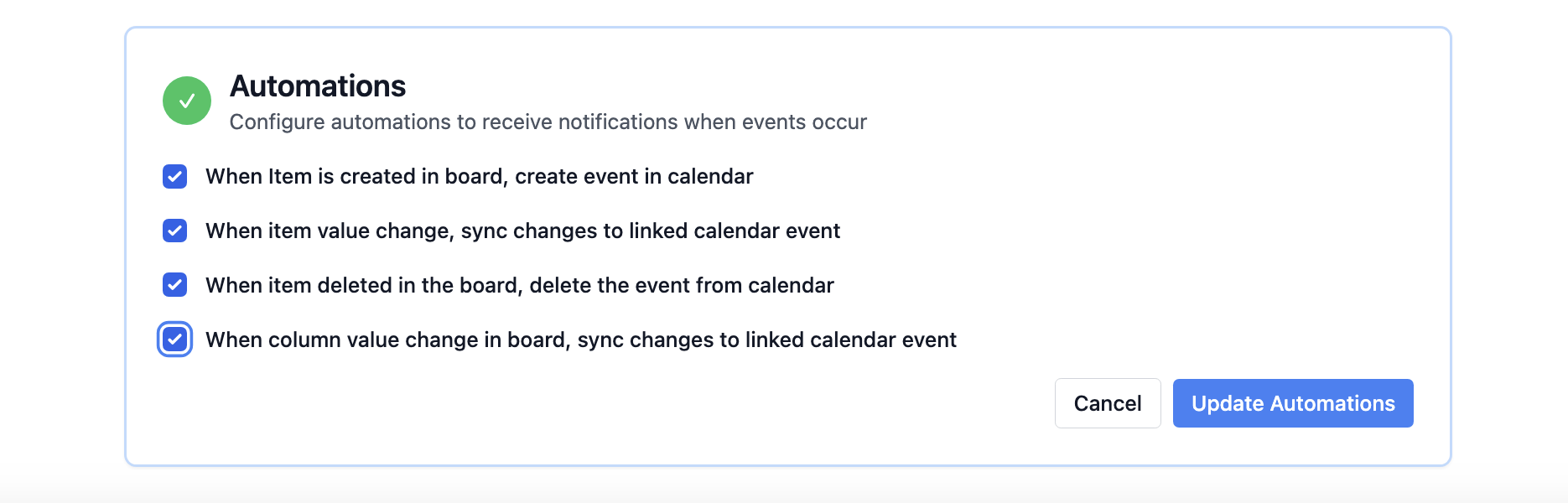
Automations trigger calendar actions based on board changes, making your workflow fully automated without manual intervention.
1. Go to Automations tab.
2. There are 4 automations:
a. When Item is created in board, create new event in Google calendar.
b. When item value changes, sync changes to linked calendar event
(eg: If email changes, it will automatically change the Google calendar event.)
c. When item is deleted in the board, delete connected event from Google calendar
d. When column values change in board, sync changes to linked calendar event
(eg: If start time changes, it will automatically change the Google calendar event. If any information changes, it will automatically change the synced Google calendar event.)
1. In your Monday.com board, create a new item.
2. Fill mapped columns (date, email, name).
3. Wait 1-2 minutes for sync.
4. Check Google Calendar for new event with Meet link.
5. Verify Monday.com item has Meet URL populated.
Success! Your setup is complete. Items created in Monday.com will now automatically generate calendar events.